Subscriptions
Create your own Subscriptions by assigning Plans to your customers. You can also customize the parameters of the Plan for the Subscription if needed.
Subscriptions table
The Subscription table collects all of your Subscriptions and displays them based on the date they were created and/or updated. It has pagination so that you can decide the number of Subscriptions to display on a page.
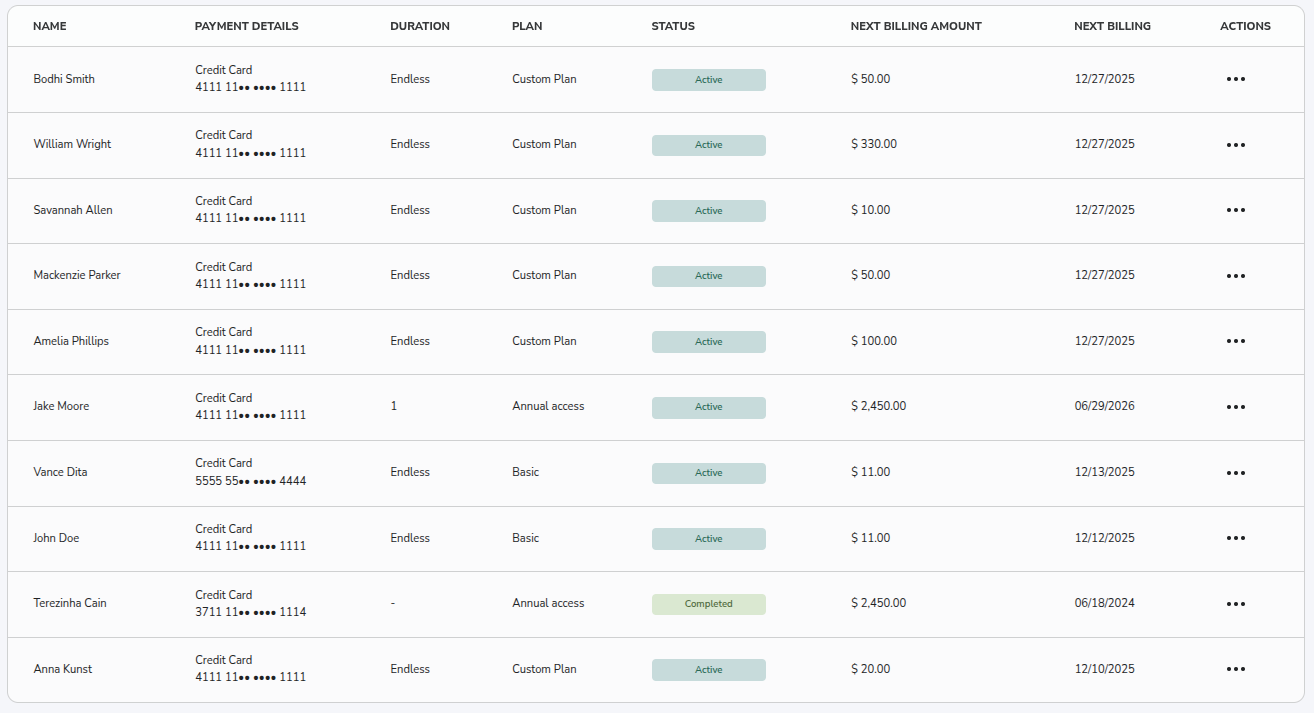
Name
Name of your Customer.
Payment Details
Payment Details of your Customer.
Next Billing Amount
Next Billing Amount charged for the Subscription.
Duration
The remaining number of cycles for the Subscription. Endless means that the duration is infinite.
Plan
The name of the Plan associated with the Subscription. Custom Plan means that the subscription doesn't have a direct connection to any active plans.
Status
Status of your Subscriptions. It can be Active, Completed, Declined, Canceled and Canceled by User.
Next Billing
The next billing date of the Subscription. Only relevant for Active Subscriptions.
Actions
- Edit: Edit your existing Subscription. When changing amount you also need to choose a proration behavior, which determinates how the possible pricing difference is resolved. Possible proration options:
nonefor no adjustments, where the new amount will be charged at the start of the next billing cycle,Create Prorationsfor calculating the amount difference based on the remaining days in the current cycle and charge at the start of the next billing cycle orImmediate Actionfor an immediate transaction to settle the difference.

The default Plan's Proration Behavior is the same as the relevant Plan's.
If proration leads to owing credit to the customer, it will be applied to their balance and substracted in the next period's charge.
-
View Subscription: Open the Subscription's detail page, where you can review the full Subscription in the Overview tab, its history in the Activity tab and the list of all transactions related to that Subscription in the Transactions tab. See Viewing a Subscription below.
-
Pause: Pause your existing Subscription.
-
Resume: Resume your existing Subscription that has been paused. Next Payment sets the date when the subscription will continue. Possible Next Payment options:
Regular schedulefor immediate resumption orCustom schedulefor any preferred future date.
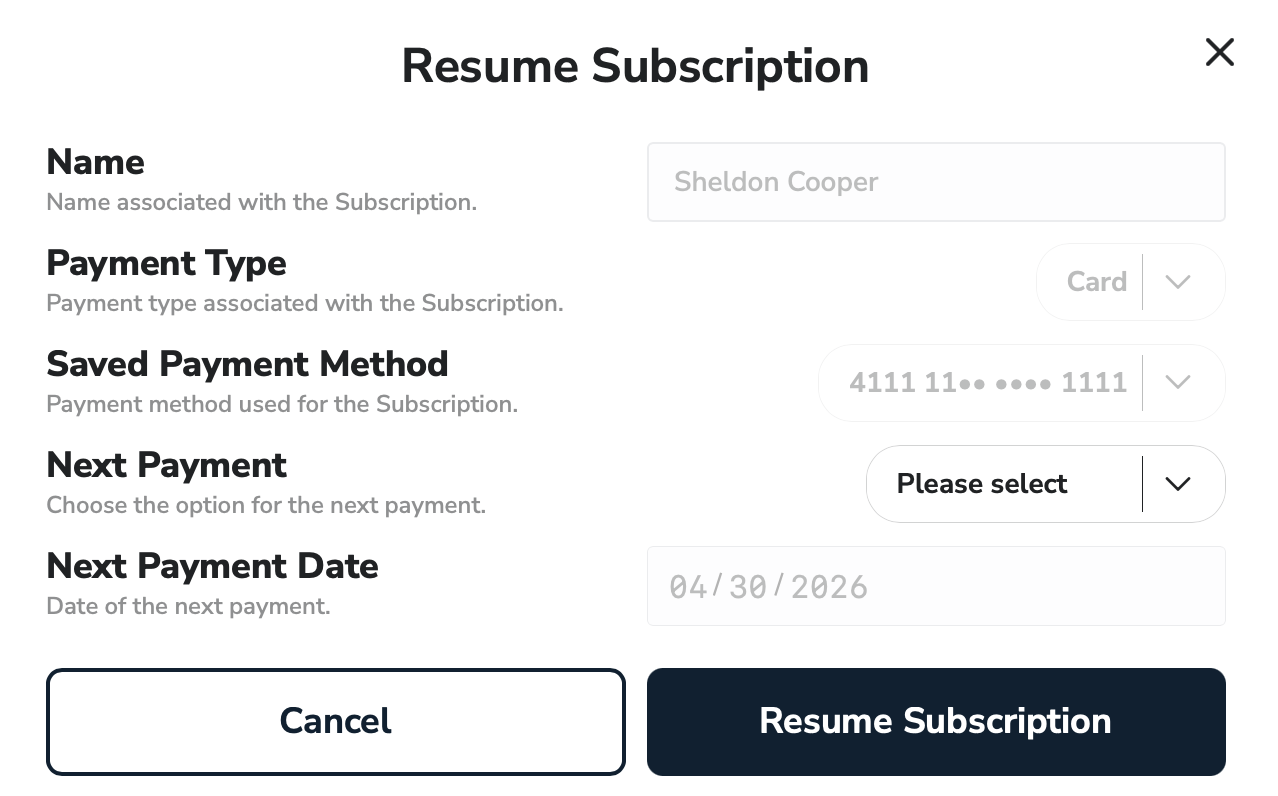
Pause and Resume are state-dependent: an active Subscription shows Pause, and a paused Subscription shows Resume in its place.
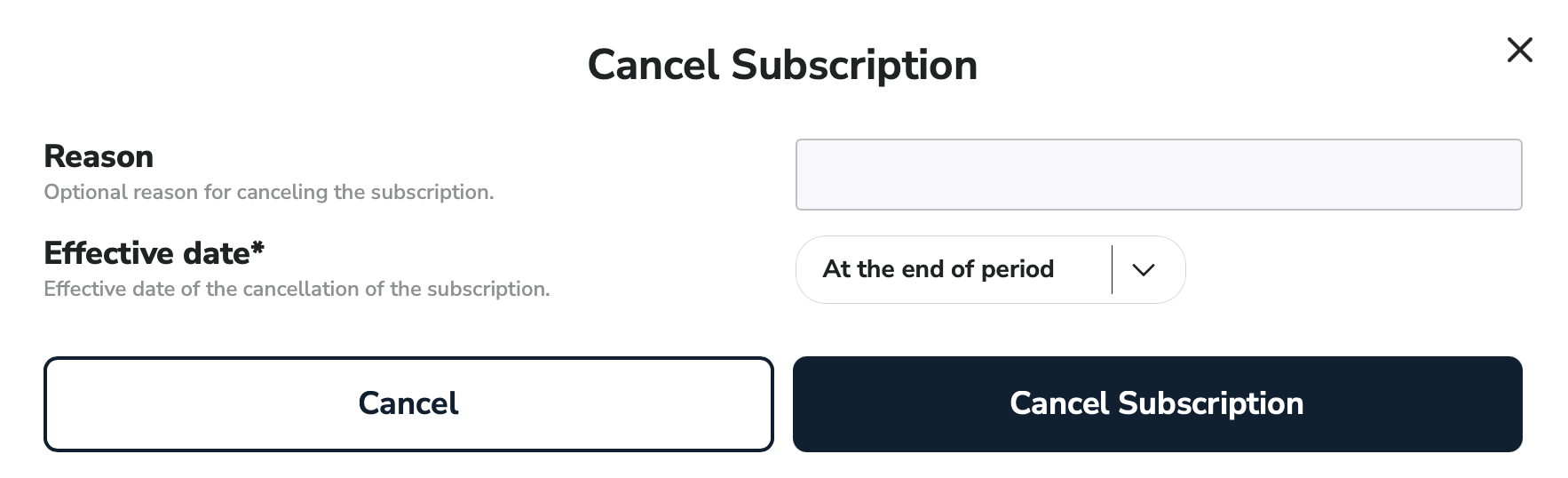
- Cancel: Cancel your active Subscription. Effective Date sets the date when the subscription will be cancelled. Possible Effective Date options:
Immediatelyfor immediate cancellation orAt the end of periodfor cancelling at the end of the current billing cycle. You can also provide an optional reason for the cancellation.
- Delete: Delete your existing Subscription.
Once a Subscription has been canceled or deleted, the action cannot be undone.
To open a Subscription, use the Actions menu. View Subscription opens the Subscription's detail page (Overview, Activity and Transactions tabs).
Create New Subscription
To create a new Subscription, simply click on the Add New Subscription button on the Subscription list page. This opens the Subscription Create page.
Recurring Information
Information related to the recurring transaction.
Plan: The plan used for the Subscription.
Processor: The processor used for the Subscription.
Description: Description of the subscription.
This Description will be used in some customer-facing products like Email reminders. Make sure that it is recognizable.
Frequency
Billing Frequency: Billing frequency of your subscription. It can be Daily, Weekly, Monthly, Every 3 Months, Every 6 Months or Annual.
Duration
Trial Period: Enable this feature to use our trial period functionality.
Trial Period Duration: Number of days while the plan is active but the first recurring payment has not been initiated yet.
Subscription Duration Endless: Enable this feature to make the subscription duration endless.
Subscription Duration: Number of cycles the subscription will run for the given subscription.
Retry logic
Define how failed payments are retried using a retry schedule. Each retry is a separate attempt with its own delay, so you control how many days to wait before each attempt rather than relying on a single fixed interval.
- Retry schedule: An ordered list of retry attempts (1st Retry, 2nd Retry, and so on). For each attempt, set the number of days to wait before it runs. The first retry is counted from the initial failed payment, and each later retry is counted from the previous failed attempt.
- Add retry: Add another attempt to the end of the schedule. You can schedule up to 5 retries in total.
- Delete: Remove a retry from the schedule. The number of retries equals the number of attempts you have scheduled.
By default, the schedule starts with three retries. You can edit any value, add more attempts, or remove them.
Retry logic applies to subscriptions paying by credit card. Due to the nature and timeline of ACH payments, it is not relevant for the ACH payment method.
Payment Information
Information related to the Customer's Payment Details.
Payment method - Card
Cardholder Name: Name of the Customer on Card.
Credit Card Number: Credit Card Number of the Customer.
Expiration Date: Expiration Date of the Credit Card of the Customer.
CVV: CVV Number on the Credit Card of the Customer.
Payment method - Wallet
Wallet: Choose the wallet used for the subscription.
The wallet associated with the subscription needs to be connected to your account before you can initiate a recurring transaction. Reach out to support if you want to add a new wallet to your connected wallets list.
Amount Information
Information related to the Subscription's Amount.
Default Initial Amount: Enable this feature to use the default initial amount of the plan associated with the subscription.
Trial Amount: Only applicable when there is a Trial Period. The trial amount charged for the Plan at the beginning of the Trial period.
Amount: Amount charged for the Subscription.
Shipping Amount: The Shipping Amount included in the Amount of the subscription.
Tax Amount: The Tax Amount included in the Amount of the subscription.
Billing Information
Only relevant for subscriptions with Card Payment method.
First Name: First Name of the Customer charged for the Subscription.
Last Name: Last Name of the Customer charged for the Subscription.
Company Name: Company Name of the Customer.
Address Line 1: Address Line 1 of the Customer Address.
Address Line 2: Address Line 2 of the Customer Address.
City: City of the Customer Address.
Country: Country of the Customer Address.
State: State of the Customer Address.
You must be aware if the end user resides in Oregon and comply with ORS 646A.295. Specifically:
- The automatic renewal terms were presented in a clear and conspicuous manner.
- The end user has provided affirmative consent to the recurring charges.
- A retainable acknowledgment including cancellation instructions has been or will be sent immediately to the end user. I assume all responsibility for compliance with Oregon’s automatic renewal laws for this transaction.
Postal Code: Postal Code of the Customer Address.
Email address: Email address of the Customer.
Viewing a Subscription
Open a Subscription from the Actions menu using View Subscription. This opens the Subscription's detail page, which has three tabs: Overview, Activity and Transactions. Use the Edit Subscription button in the top-right of the page to make changes.
Subscriptions Overview
The Overview tab is a read-only summary of the Subscription, grouped into sections.
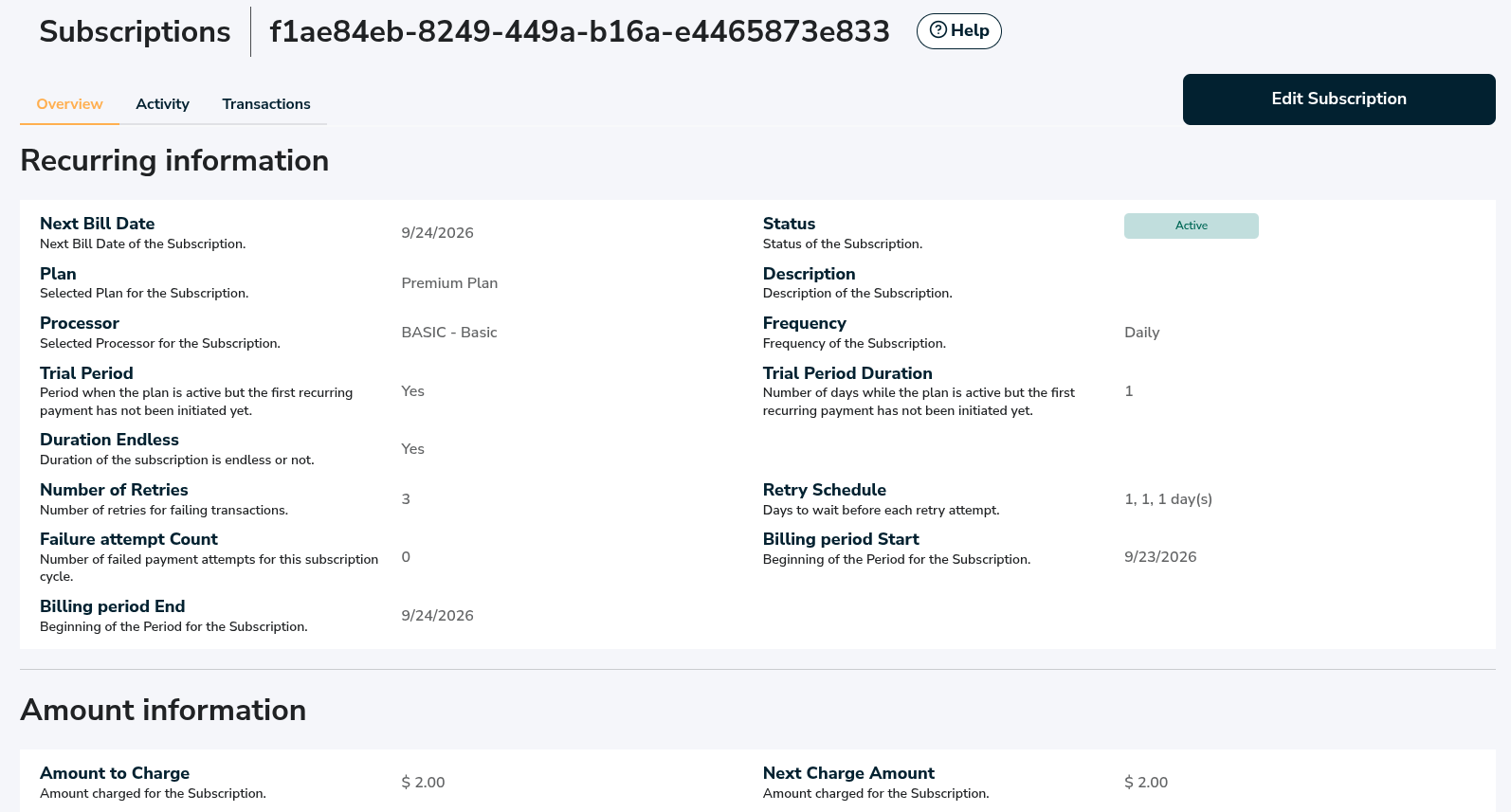
Recurring information
Next Bill Date: Next Bill Date of the Subscription.
Status: Status of the Subscription.
Plan: Selected Plan for the Subscription.
Description: Description of the Subscription.
Processor: Selected Processor for the Subscription.
Frequency: Frequency of the Subscription.
Trial Period Duration: Number of days while the plan is active but the first recurring payment has not been initiated yet.
Duration Endless: Whether the duration of the Subscription is endless or not.
Subscription Duration: Number of cycles the Subscription runs for.
Number of Retries: Number of retries for failed transactions.
Retry Schedule: Days to wait before each retry attempt.
Failure attempt Count: Number of unsuccessful retries attempted for this Subscription cycle.
Billing period Start: Beginning of the current billing period for the Subscription.
Billing period End: End of the current billing period for the Subscription.
Amount information
Amount to Charge: Amount charged for the Subscription.
Next Charge Amount: The amount to be charged on the next billing date.
Initial Amount: The initial amount charged for the Subscription.
Tax Amount: Tax amount included in the Subscription amount.
Trial Amount: The trial amount charged for the Subscription.
Shipping Amount: Shipping amount included in the Subscription amount.
Plan's Proration Behavior: Controls how mid-cycle billing adjustments are handled when subscriptions on this plan are changed.
Customer information
Customer ID: Customer ID associated with the Subscription. Click the copy icon to copy it.
Payment information
Payment Method: Type of the saved payment method. Possible values: Card, ACH or Wallet.
Card Number: Card Number of the saved Card.
Card Brand: Brand of the saved Card.
Wallet holder Name: Name of the Wallet holder associated with the subscription.
Wallet ID: Wallet ID associated with the subscription. Click the copy icon to copy it.
Account Type: Account Type of the saved bank account.
Holding Name: Name on account.
Bank Name: Name of the bank for the saved bank account.
Routing Number: Of the merchant's bank account.
Account Number: Last 4 digits of the account number.
The fields shown depend on the payment method. Card subscriptions show the saved card details; ACH and Wallet subscriptions show the details relevant to those payment methods.
Billing information
First Name: First name of the Customer.
Last Name: Last name of the Customer.
Country: Country of the Customer's Address.
Company Name: Company name of the Customer.
Address Line 1: Address Line 1 of the Customer's Address.
Address Line 2: Address Line 2 of the Customer's Address.
State: State of the Customer's Address.
City: City of the Customer's Address.
Postal Code: Postal Code of the Customer's Address.
Additional Fields
Form ID: Form used to create the Subscription. Click the copy icon to copy it.
External ID: External ID used when creating the Subscription. Click the copy icon to copy it.
Subscriptions Activity
The Activity tab shows the full history of the Subscription as a timeline of events.
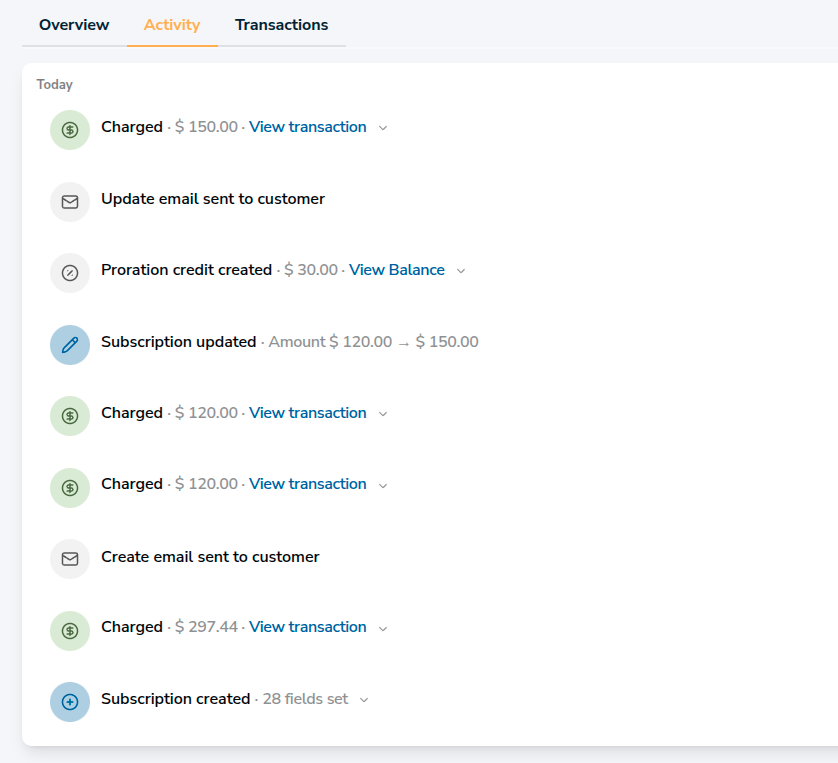
How to read the timeline
- Events are grouped under date headers (for example
Today, then each date) and listed newest first. - Each event shows an icon and a label. Some events include an inline detail, such as
2 fields changedon a Subscription updated event or the reason on a Subscription canceled event. An expand arrow reveals more detail where available. - Some events include an inline link: View transaction opens the related transaction, and View Balance opens the Subscription's balance.
- The right side of each event shows its source and time. The source is what triggered the event: a named user,
Customer,Automatic(system-generated), orPlan update. - Use the page-size selector and pagination controls at the bottom to move through the history.
Event types
| Event | What it means | Source | Details it carries |
|---|---|---|---|
| Subscription created | The Subscription was created. | User / Customer | — |
| Subscription updated | One or more fields on the Subscription were changed. | User | N fields changed (expandable) |
| Plan update applied | A plan or amount change took effect on the Subscription. | Plan update | amount X → Y USD |
| Proration credit created | A mid-cycle change produced a credit for the Customer, applied toward the next charge. | Plan update | Credit amount, View Balance link |
| Charged X.XX USD | A payment was successfully taken. | Automatic | View transaction link |
| Charge failed | A payment attempt failed. | Automatic | attempt N: reason |
| Renewal reminder emailed to customer | A renewal reminder email was sent to the Customer. | Automatic | — |
| Payment-failed email not sent | A payment-failed email could not be delivered. | Automatic | Reason (expandable) |
| Subscription paused | The Subscription was paused. | User / Customer | — |
| Subscription resumed | The Subscription was resumed after being paused. | User / Customer | — |
| Cancellation scheduled for next bill date | An end-of-period cancellation was scheduled. | User | — |
| Subscription canceled | The Subscription was canceled. | User / Customer | Reason (expandable) |
| Subscription deleted | The Subscription was deleted. | User | — |
Proration events
When a Subscription changes mid-cycle, the change can create a credit for the unused part of the current period. The credit is applied to the Subscription's balance and settled against the next charge. The timeline records this as a Proration credit created event, and the View Balance link on that event opens the Subscription's balance.
To choose how proration is handled when you change a Subscription, see the Edit action above and the Plan's Proration behavior field on the Overview tab.
Subscriptions Transactions
The Transactions tab lists all transactions related to a Subscription.
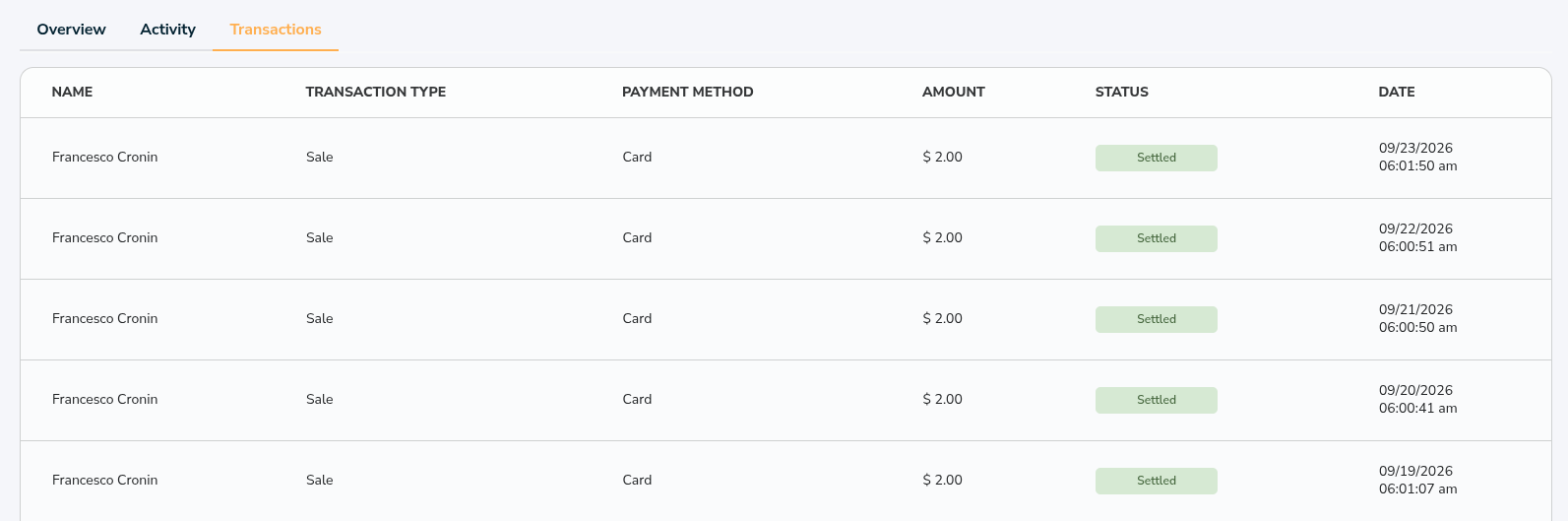
How to read the table
- Each row is one transaction created for this Subscription, including the pending, settled and declined attempts (for example, failed retries). Newest transactions are listed first.
- Click a row to open its Transaction Details page, where you can see further relevant information. See Transaction Details.
Name
First and Last Name of the individual who initiated the transaction.
Transaction Type
Type of the transaction. Recurring charges typically appear as Sale.
Payment Method
Payment method of the transaction. Possible values: Card or ACH.
Amount
Total amount of the transaction. Further amount details can be found on the Transaction Details page.
Status
Status of the transaction. Possible values: Pending, Settled, Voided, Refunded or Declined.
Date
Date and time the transaction was initiated.
Every successful charge also appears on the Activity tab as a Charged X.XX USD event. Its View transaction link opens the same Transaction Details page. Failed charges appear there as Charge failed events.
This tab only shows transactions for this Subscription. To search, filter or export across all your transactions, use Transactions in Reporting.